AI agents that do the work. You approve from your phone
Otar runs Claude Code, Codex and your other agents on your own computer. Give them apps to work in, like Workspace ERP, and follow every step from any device.
You’ll also need Otar on your computer. Email yourself the link
Works with the agents you already use
- Claude Code
- Codex
- Grok Build
- Pi
- Oh My Pi
- Antigravity
Apps
Workspace ERP, the first app your agents work in.
Sales & CRM, Procurement and Project Management share one company database on your own computer. The agent drafts customers, quotations, purchase orders and payments; anything that commits the company waits for your approval on your phone.
Early access Workspace ERP is in early access for companies in Singapore. See how it works · How data flows between modules
Coming soon: describe the app you need, such as site inspections or equipment loans, and your agent builds it from the same building blocks.
Sales & CRM
Leads become customers and deals. Accepted quotations turn into sales orders, invoices and payments with 9% GST.
Procurement
Purchase requests split into purchase orders by vendor. Goods receipts and vendor bills are matched three ways.
Projects
Confirmed orders create projects and tasks with dependencies. The workload view flags who is over-allocated.
Agents
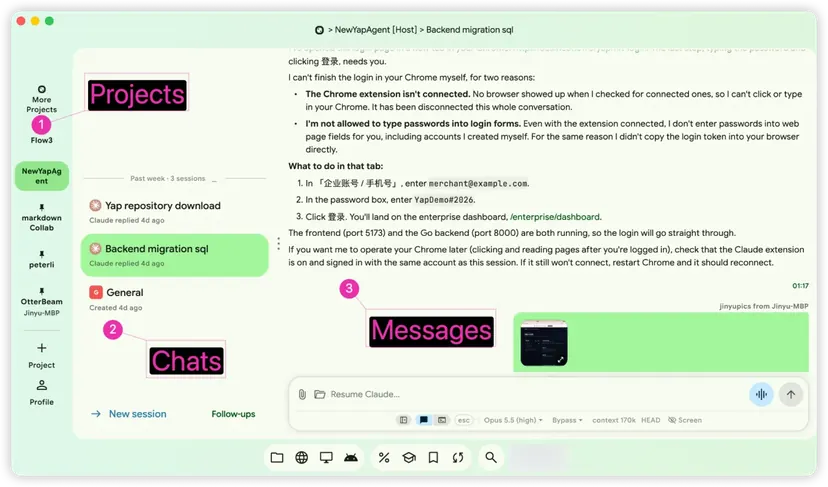
Every agent chat, in your pocket.
Start or resume Claude Code, Codex and more. Follow along as a chat or in the real terminal, reply by voice, and get a notification when an agent needs you.
Files
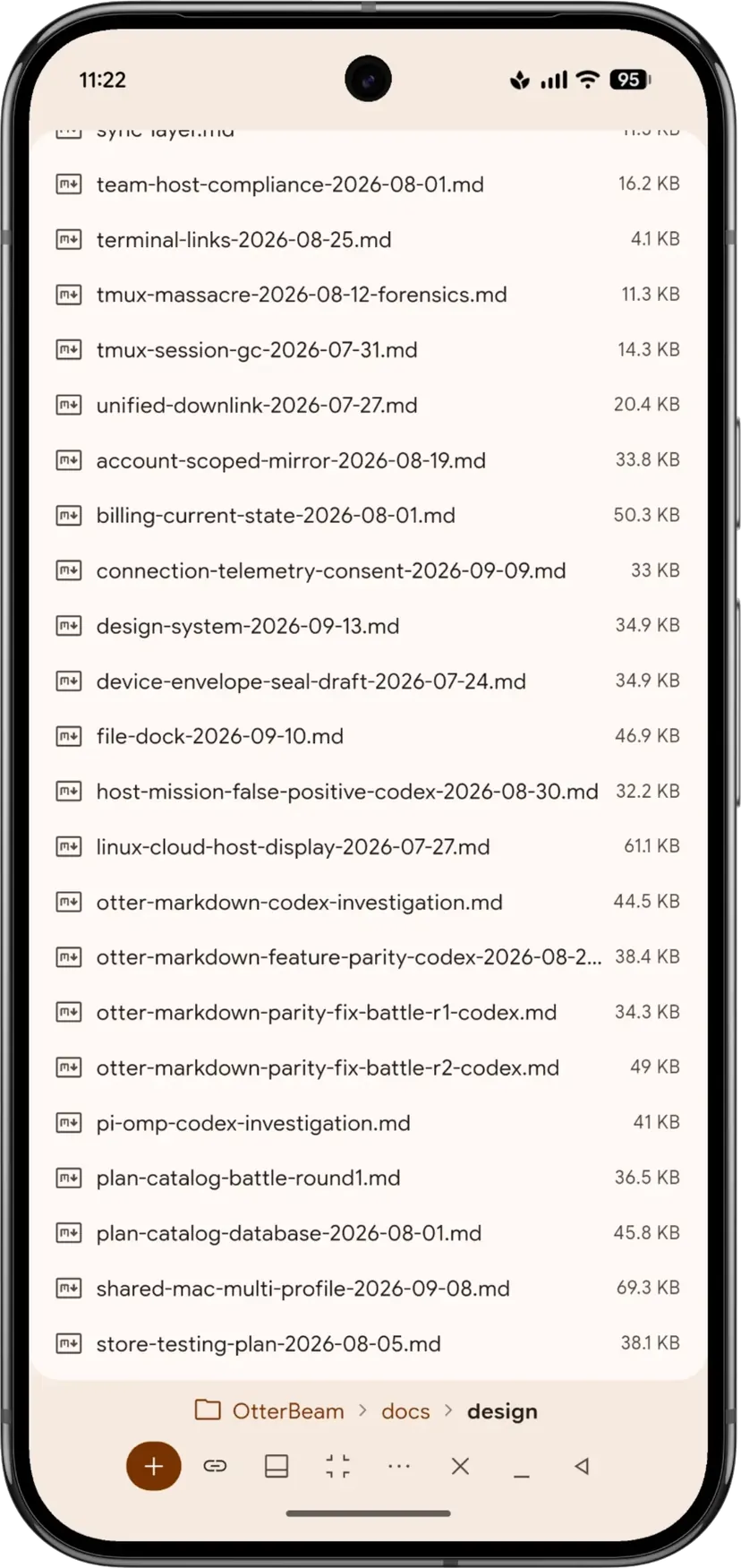
Your files, editable anywhere.
Browse your computer and open .docx, .xlsx, .pptx, .md or code files. Edits save straight back to your computer.
Apps
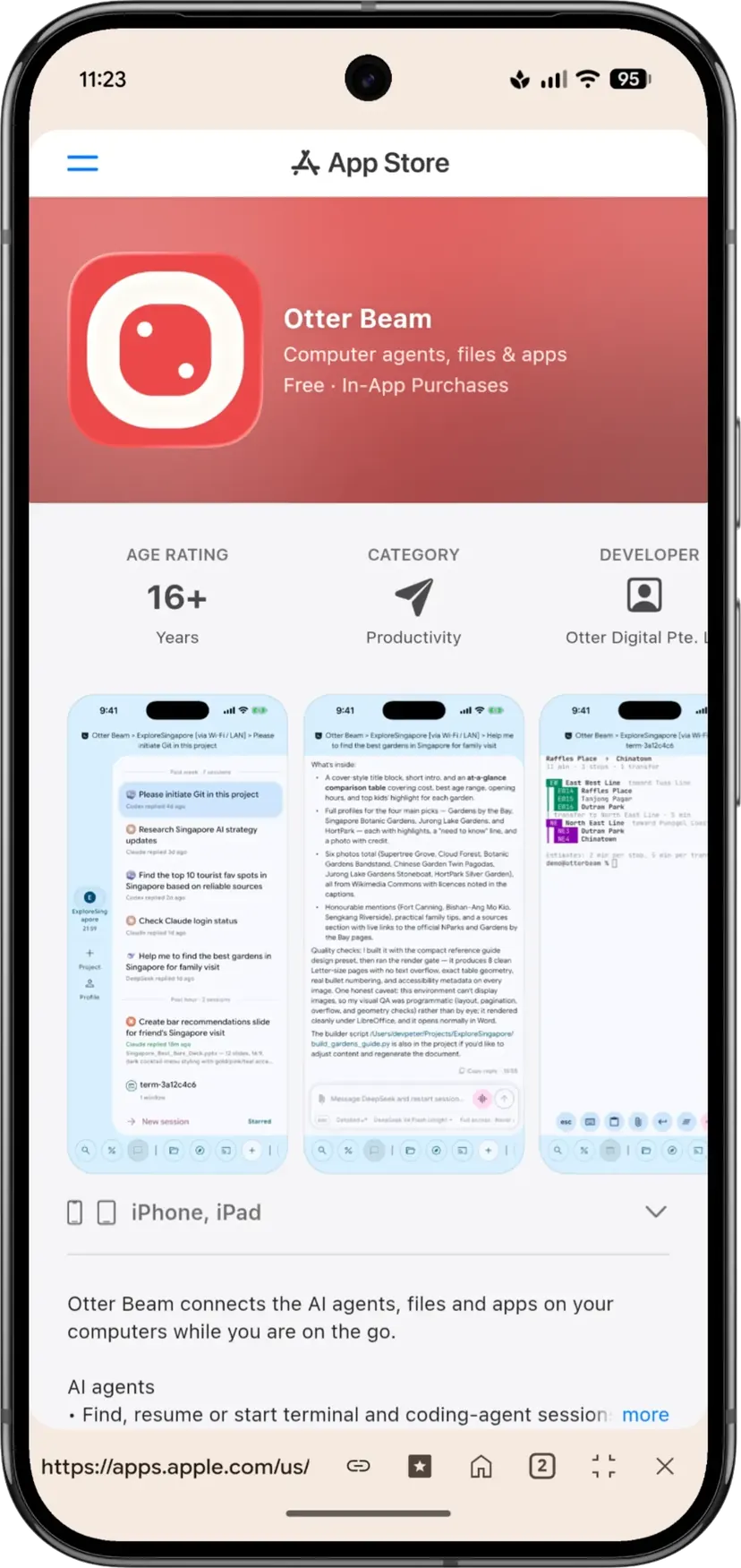
Any app window, on any screen.
Watch one window or the whole screen, or add an extra display sized to your phone, foldable or tablet. Tap or type to take control.
How it works
Up and running in three steps.
Install on your computer
A Mac, a Windows PC or a Linux machine. This is where your agents run.
Sign in and approve your devices
Approve each new phone, tablet or browser from a device you’ve already signed in on.
Open anything, from anywhere
Chats, files and app windows. Your work keeps running on your computer when you disconnect.
Security & privacy
Your keys. Your computer. Your work.
Every device approved from one you trust
No passwords to copy, no keys to paste. Review or remove devices anytime in Profile → Devices.
Direct on your network, Otar Relay when away
No port forwarding, public IP or tunnel to set up.
End-to-end encrypted
Encryption keys stay on your devices. We never receive them.
Coming soon · early November 2026
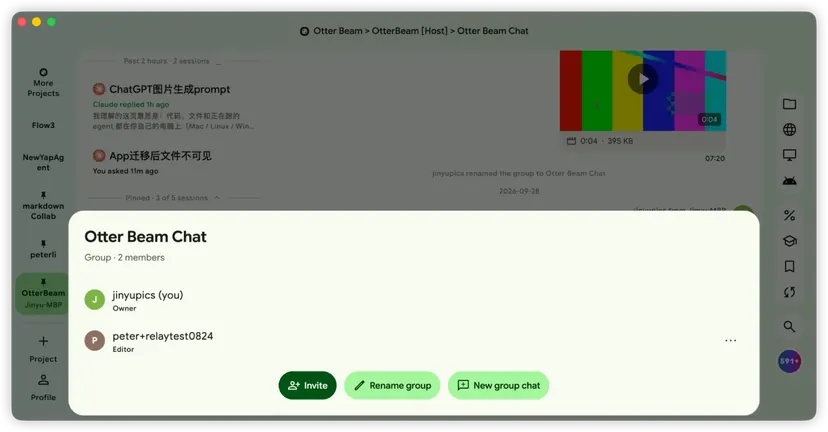
Bring your team — keep control.
Your data stays on your own computers.
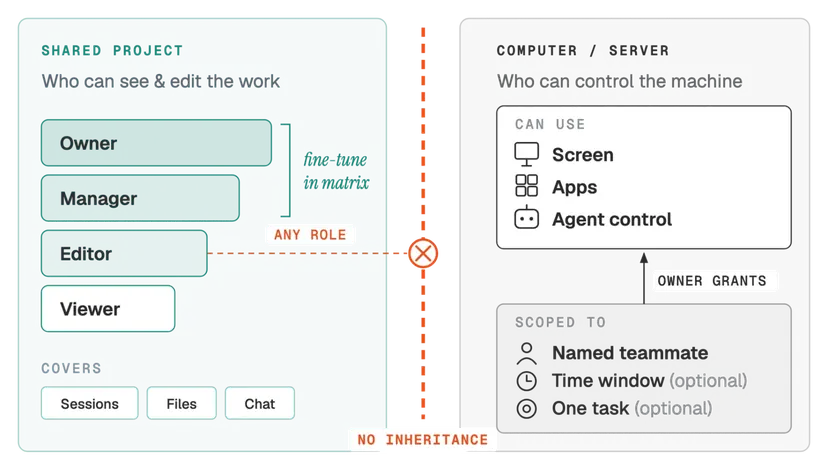
Shared projects, four roles
- Owner
- Manager
- Editor
- Viewer
Machine control, granted separately
To a named teammate, for a time window or for one task. A project role alone never gives access to your computer.
For enterprises
The FDE platform — connecting Forward Deployed Engineers with enterprises
Plans
Free to start. Go further with a plan.
Otar Pro and Premium subscriptions add:
Pro
- 200 voice-transcription minutes a month
- Otar Relay sessions up to 4 hours
Premium
- 500 voice-transcription minutes a month
- Otar Relay sessions up to 7 days
Plans don’t limit direct connections on your own network. Pricing, billing frequency and automatic-renewal terms are shown before purchase and governed by the Terms of Service. Manage or cancel in the store you bought from; purchases restore from the Plan screen.
What is Otar?
Otar is an agentic workspace. AI agents such as Claude Code and Codex run on your own computer, and apps such as Workspace ERP give them structured business data to work on. You follow the agents, review their drafts and approve their actions from your phone, tablet or browser.
How do I use Claude Code or Codex from my phone?
Install Otar on the computer where the agent runs, then open the same chat from the Android, iOS, desktop or web app. Read it as a chat or as the real terminal, and change model and permissions from there.
Does Otar work away from my Wi-Fi?
Yes. On the same network your devices connect directly. Away from it, Otar Relay forwards the already-encrypted connection, so you need no public IP, port forwarding or tunnel.
Is Otar end-to-end encrypted?
Yes. Device keys stay on your devices and are never uploaded. Otar Relay only passes along encrypted data and cannot read your commands, output or files.
What platforms does Otar support?
Install Otar on a Mac (macOS 11 or later), a Windows PC or a Linux computer, then connect from Android, iOS, another computer or the web. Chats, terminals and file editing work the same in the apps and in the browser.
Do I need to know tmux to use Otar?
No. Agents run in tmux so they survive disconnects, but you never touch it: Otar lists what is running, starts or resumes chats, and puts the agents waiting on your reply at the top.
Take your work with you.
Install it on your computer first, then open your work from a phone, tablet or browser.
First, install on your computer
Then open it from your other devices
Otar on Linux
Four builds, one per kind of machine. Not sure which? uname -m prints x86_64 for Intel and AMD, aarch64 for 64-bit ARM.
- .deb — x86_64 for Ubuntu 22.04 / 24.04 / 26.04 and Debian 13 on an Intel or AMD machine.
- .deb — arm64 for those same distributions on a 64-bit ARM machine.
- AppImage — x86_64 for every other distribution — Arch, Fedora, openSUSE, NixOS and the rest. One file, no package manager, nothing installed system-wide.
- AppImage — arm64 for those same distributions on 64-bit ARM.
Install a .deb from the folder you downloaded it to:
sudo apt install ./otterbeam_*.deb
An AppImage just needs to be marked executable:
chmod +x OtterBeam-*.AppImage && ./OtterBeam-*.AppImage
An AppImage bundles Otar's own libraries and borrows the rest from your desktop — GTK 3, GStreamer, PulseAudio, libsecret and Mesa. Any normal desktop install already has them. A minimal or server install may not; on Arch that is:
sudo pacman -S --needed gtk3 gst-plugins-base-libs libxtst libpulse libsecret mesa
Other distributions ship the same libraries under their own package names. You do not need FUSE: without it the AppImage unpacks itself and runs anyway.
Every build needs glibc 2.34 or newer, which means Ubuntu 22.04, Debian 12, Fedora 36 and RHEL 9 and up. Older releases, and distributions built on musl such as Alpine, cannot run it.
Updates arrive in the app itself — the Update button downloads, verifies and installs the same kind of build you are already running. You never come back to this page for a new version.
Verify any download against SHA256SUMS, its signature and our signing key.
Known limitations
- No native notifications.
- No in-app web preview.
- Autostart needs systemd.
- Passwordless auto-login can leave the desktop keyring locked — unlock it before signing in.
Otar on Windows
Otar for Windows is a signed installer for Windows 10 (2004 or later) and Windows 11 on x64 PCs. Open the downloaded file and click Install. Otar can start with Windows and updates install the same way.
Prefer a portable copy? Download the portable zip.
Setup prepares the PC: it uses WSL 2, the Linux environment built into Windows, and turns on remote access over SSH so your phone and other computers can open terminals and coding agents there. Windows asks for administrator approval and may need to restart. If you only want to connect to your other computers, choose Use as client only.
Known limitations
- No notification click-through and no automatic return from the payment page.
- No Windows push notifications after the app is closed.
- Links open in your system browser; there is no in-app browser.
- Office previews need the Microsoft Edge WebView2 Runtime, which Windows 11 includes.
- The built-in Chinese/Japanese input engine is unavailable; use the Windows IME.
- Opening an extra display is not available yet.
Report problems to peter@otterd.com with the build number (Profile → About) and, for connection issues, the text from Profile → Devices → Connection diagnostics → Copy.
Last updated: September 30, 2026
An Otar account is required to link devices, and can be deleted from Profile → Account or the account deletion page. Reaching a computer requires installing and setting up Otar on it.
Otar is independent software and is not affiliated with or endorsed by any AI coding-agent provider.
Otar is built by Otter Digital Pte. Ltd. in Singapore. Questions, bug reports and privacy requests go to peter@otterd.com — see the support page for what to include.